Cal AI manual entry: log food without using a photo scan
Cal AI manual entry lets you add food without using a scan. Use the photo path only when it helps, then fix grams or calories yourself.
Published Nov 4, 20266 min read
In this guide
How do you log food in Cal AI without using a photo scan?
You can log food in Cal AI by entering it manually instead of using a scan, and that path does not use your scans at all. This article is about the Cal AI app published by BeeStudio (calai.me), not the other app with the same name.
Manual entry is the cleanest option when you already know what you ate, when the photo is bad, or when you do not want to spend a scan on something simple. The app also lets you edit grams and calories after a scan, so you are not locked into the first estimate.
What should you do if the scan is close but the calories or grams are off?
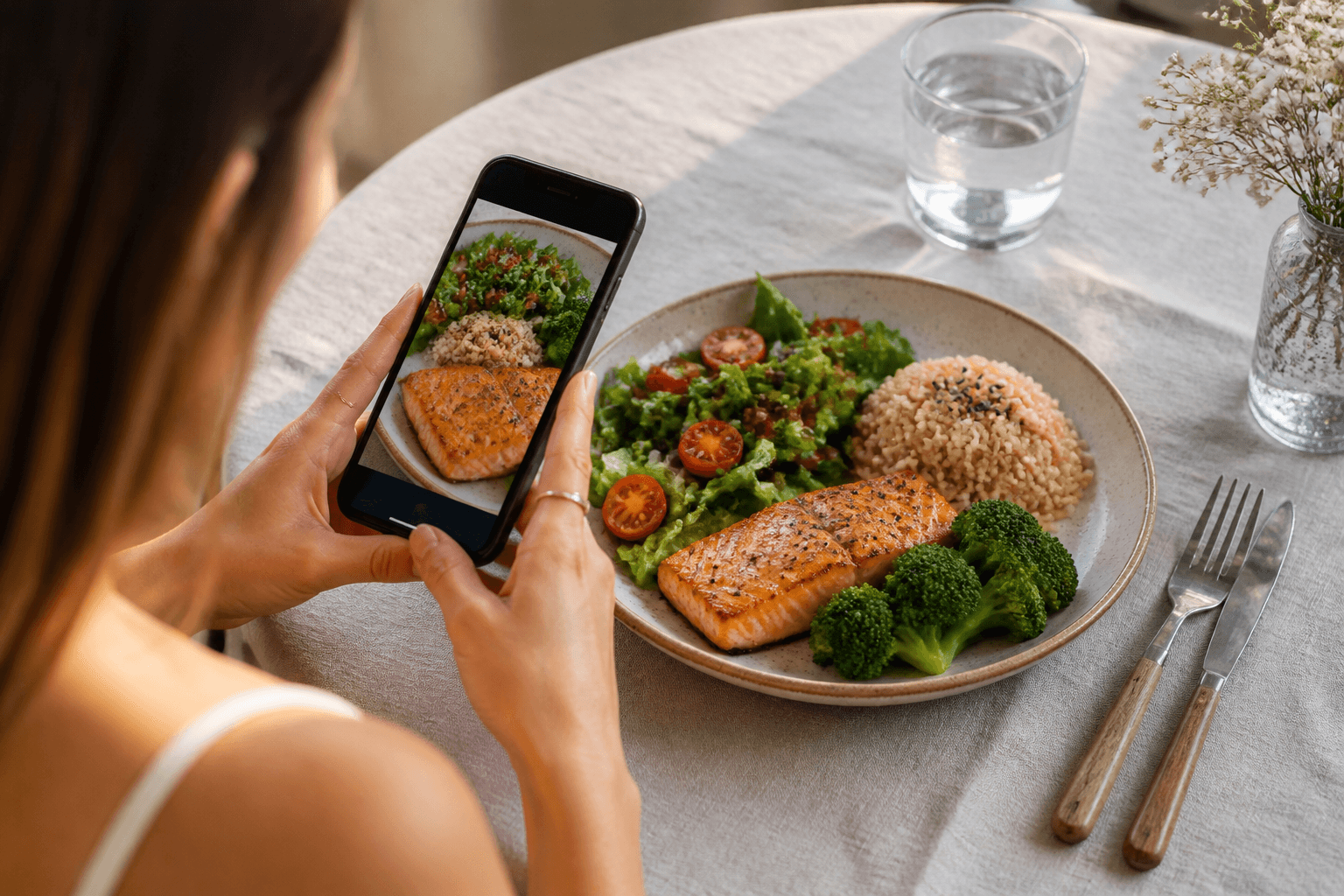
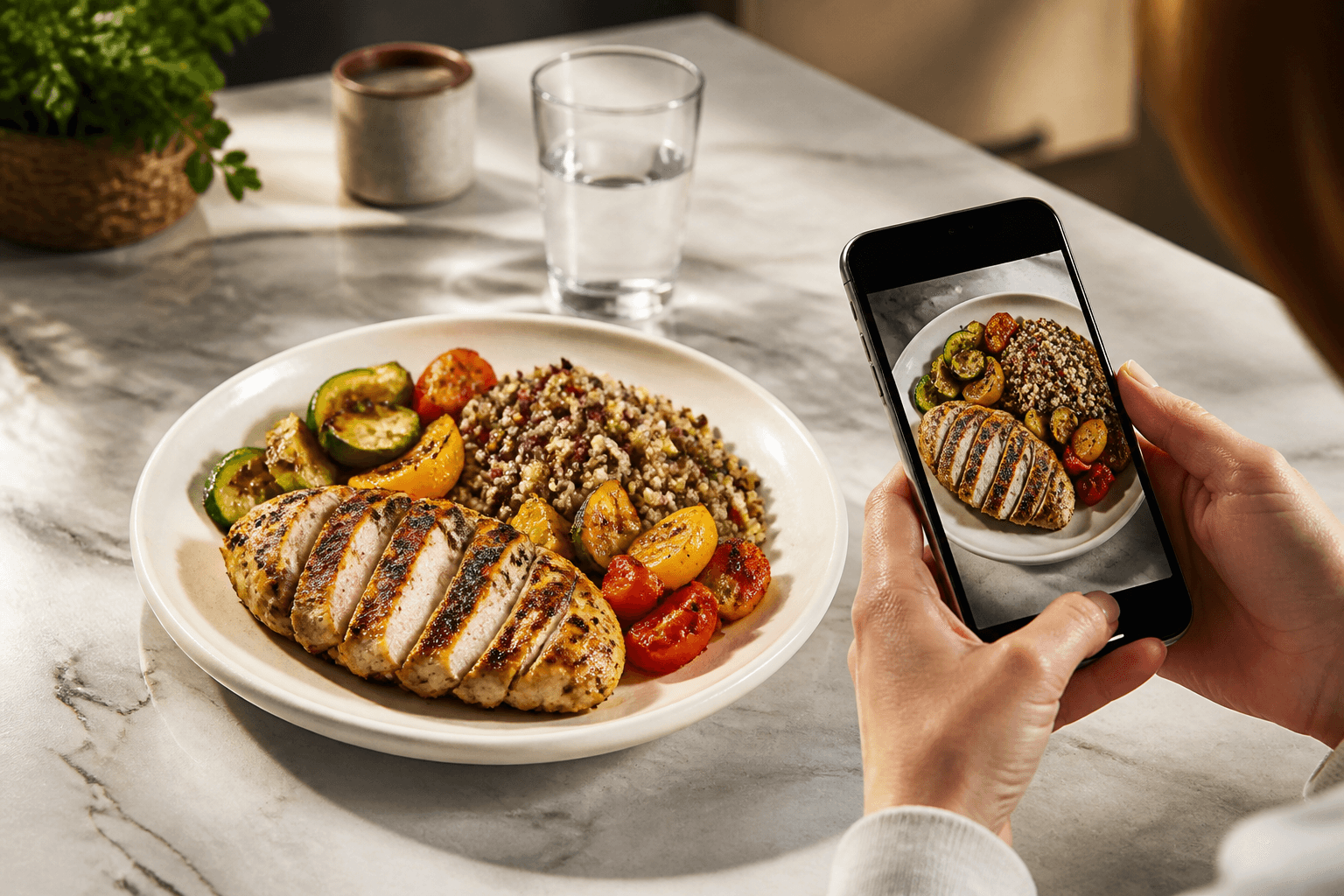
Use the scan as a starting point, then correct the numbers before you save it. The app is built to estimate calories and macros from a meal photo, but the final log should match what you actually ate.
If the portion looks right but the grams are off, keep the food choice and change the grams. If the food choice is wrong, switch to the closer match first, then adjust the grams or calories. That is faster than starting over, and it keeps the entry tied to the meal you intended to log.
A useful habit is to correct the biggest mismatch first. For example, if the app picked the right food but assumed a larger serving, change the grams before you worry about a small calorie difference. If the photo includes sauces, bread, or toppings that were not obvious, add them as separate items if you need a cleaner total.
For packaged items, the photo can be a decent shortcut, but the label is still the better source when you have it. Cal AI estimates calories from the image, and packaged foods are only a slice of the photos people use in the app.
What portion sizes should you choose when you enter food manually?
Use the serving you actually ate, then match it to the closest gram amount in the app. If you do not know the exact weight, choose the portion that best matches the plate in front of you and correct it later if you get better information.
| Portion | Grams | kcal |
|---|---|---|
| 100 g | 100 g | 100 g × calories per 100 g from the Cal AI catalog |
| small | use the small serving grams from the Cal AI catalog | small serving grams × calories per gram from the Cal AI catalog |
| standard | use the standard serving grams from the Cal AI catalog | standard serving grams × calories per gram from the Cal AI catalog |
| large | use the large serving grams from the Cal AI catalog | large serving grams × calories per gram from the Cal AI catalog |
That is about N percent of a 2,000 kcal day.
When you log manually, the main choice is not whether the number is perfect. It is whether the entry is close enough to be useful. A smaller portion that is clearly undercounted is worse than a rough entry you can edit later.
A practical way to choose portions is to think in plate parts. If you ate half a sandwich, choose the half-sized portion or cut the grams in half. If the meal was shared, log only your share. If you finished a restaurant plate but left the sauce, use the food amount you actually ate rather than the full serving on the menu.
What features does Cal AI include, and what is not built in?
Cal AI includes photo scanning with several recognition variants to choose from, editable grams and calories, manual entry that does not use scans, a daily calorie goal based on TDEE from the Mifflin-St Jeor formula, and day-by-day history.
It does not include a searchable food database. It also does not include Apple Health, Google Fit, or other fitness-tracker integration, and it does not include weight tracking. If you were looking for one of those features, you will not find it inside the app.
That matters because a lot of search results blur these features together. Manual entry in Cal AI is not the same thing as browsing a full food catalog. It is a direct log path for food you already know, with no scan required.
If you are trying to verify a food choice before you log it, use the site tools instead of expecting an in-app database. The site has a food catalog at /calories/, plus comparisons at /compare and calculators at /calculators.
How do subscriptions, trials, and store management work for Cal AI?
Cal AI subscriptions come with a trial, and the live terms stay on the product page. The app is bought only through the App Store or Google Play.
If you need to check or cancel a subscription, use the store where you bought it:
- iPhone: Settings > [your name] > Subscriptions
- Android: Google Play > profile > Payments & subscriptions > Subscriptions
That store path is the one that controls billing, renewal, and cancellation. If you subscribed in one store, do not look in the other store first.
If you are unsure whether a trial is active, open the same subscription screen and check the status there. If the app was installed on a new device after you subscribed, the subscription still follows the store account, not the phone itself.
For a trial or paid plan, the details shown in the store are the ones that matter. The app may show access status, but the store is where you manage the subscription.
What should you do if you confused this app with the other Cal AI app?
Check the publisher before you go any further. This guide is for the Cal AI app published by BeeStudio (calai.me), which estimates calories and macros from meal photos.
If the app on your phone does not match that description, you are probably looking at a different product with the same name. That can explain why menus, features, or subscription screens do not line up with what you expected.
The quickest fix is simple: confirm the store listing, then make sure you are reading the right help page for the right app. If you meant BeeStudio’s app, use the official site path and the store listing tied to your account before you try to troubleshoot anything else.
If you are on the right app but still want to avoid scans, stay on manual entry. It is the direct path for food you already know, and it keeps your log moving when the camera is not the right tool.
Topics
Frequently asked questions
Does Cal AI manual entry use a scan at all?
No. Manual entry is the path that does not use scans. If you already know the food and portion, it is the faster way to add it.
Can I change an entry after Cal AI estimates it from a photo?
Yes. You can edit grams and calories after the scan, which is useful when the food is right but the portion estimate is off.
Why do I not see a searchable food database in Cal AI?
Because it is not built in. Cal AI is designed around photo estimates and manual logging, not a searchable in-app food catalog.
Where do I manage my Cal AI subscription?
On iPhone, use Settings [your name] Subscriptions. On Android, use Google Play profile Payments & subscriptions Subscriptions.
Cal AI Editorial Team
Practical guides on nutrition, calorie tracking, meal planning, and building healthier habits with Cal AI.
Editorial policyRelated articles
- Cal AI
Setting a Cal AI calorie goal: what TDEE means and how it works
Cal AI sets your daily calorie goal from TDEE, using the Mifflin-St Jeor formula. Here is what that means, where to check it, and how to fix a wrong estimate.
Nov 19, 20267 min read1 views
- white rice
Calories in White Rice: Cup, Bowl, Restaurant Portion
Calories in white rice start at **130 kcal per 100 g**. See the cup, bowl, and restaurant portions, plus the quickest way to log rice in Cal AI.
Oct 30, 20267 min read4 views
- cal ai
Cal i: How to log a meal from a photo and what to expect
Cal AI estimates calories and macros from a meal photo, not a manual database lookup [f:cal.product.0]. Here is how to log food, what it handles well, and what to fix when the estimate is off.
Oct 29, 20268 min read
- Cal AI
The scan got the dish wrong: how to fix grams and calories in Cal AI in 20 seconds
Fix a wrong Cal AI scan by choosing the closest recognition variant, correcting grams, and editing calories when the portion still looks off.
Oct 26, 20266 min read3 views
- french fries
Calories in French Fries: Small, Medium and Large Portions
French fries are 312 kcal per 100 g, and a standard 117 g serving is 365 kcal. Use grams, not size names, when the portion looks unclear.
Oct 23, 20265 min read4 views
- Cal AI
How to Cancel Cal AI Subscription on iPhone and Android
Cancel Cal AI through Apple or Google Play, not inside the app. Follow the exact menu paths and see what cancellation means for history and scans.
Oct 20, 20265 min read1 views