Setting a Cal AI calorie goal: what TDEE means and how it works
Cal AI sets your daily calorie goal from TDEE, using the Mifflin-St Jeor formula. Here is what that means, where to check it, and how to fix a wrong estimate.
Updated Nov 20, 20267 min read1 views
In this guide
Cal AI sets your calorie goal from TDEE, which is your estimated daily energy use. This article is about the Cal AI app published by BeeStudio (calai.me), not the other app with the same name.
What does TDEE mean, and why does Cal AI use it for your daily calorie goal?
TDEE means total daily energy expenditure: the amount of energy your body uses across a day. Cal AI uses it because a daily calorie goal needs a starting point, and TDEE gives the app a way to anchor that goal to your body size and routine rather than a one-size-fits-all default.
In the app, that matters because the calorie goal is not just a number to stare at. It is the target that sits behind your food logging and your day-by-day history. If the goal is too high, your day looks looser than it should. If it is too low, you may feel boxed in before the day is over.
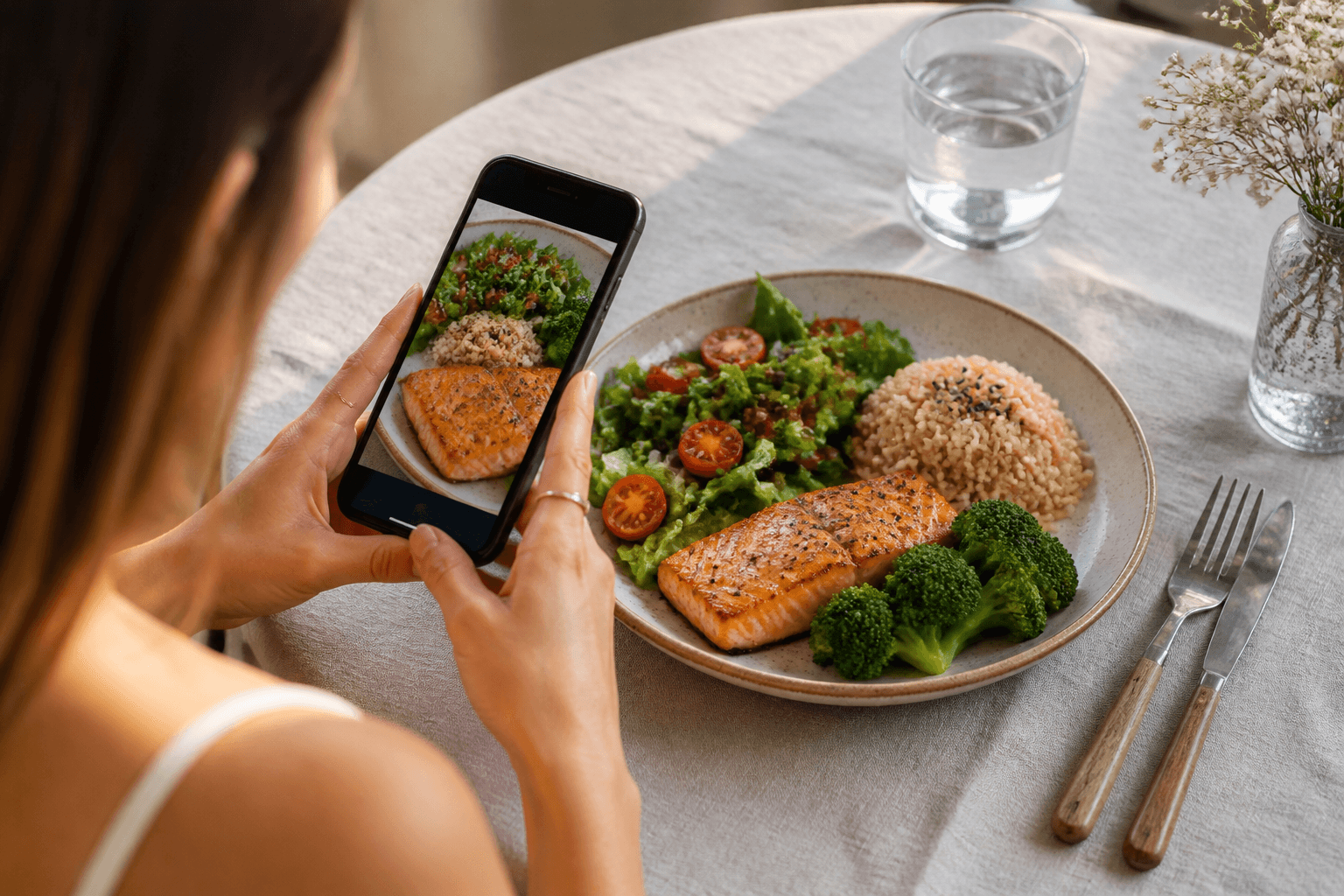
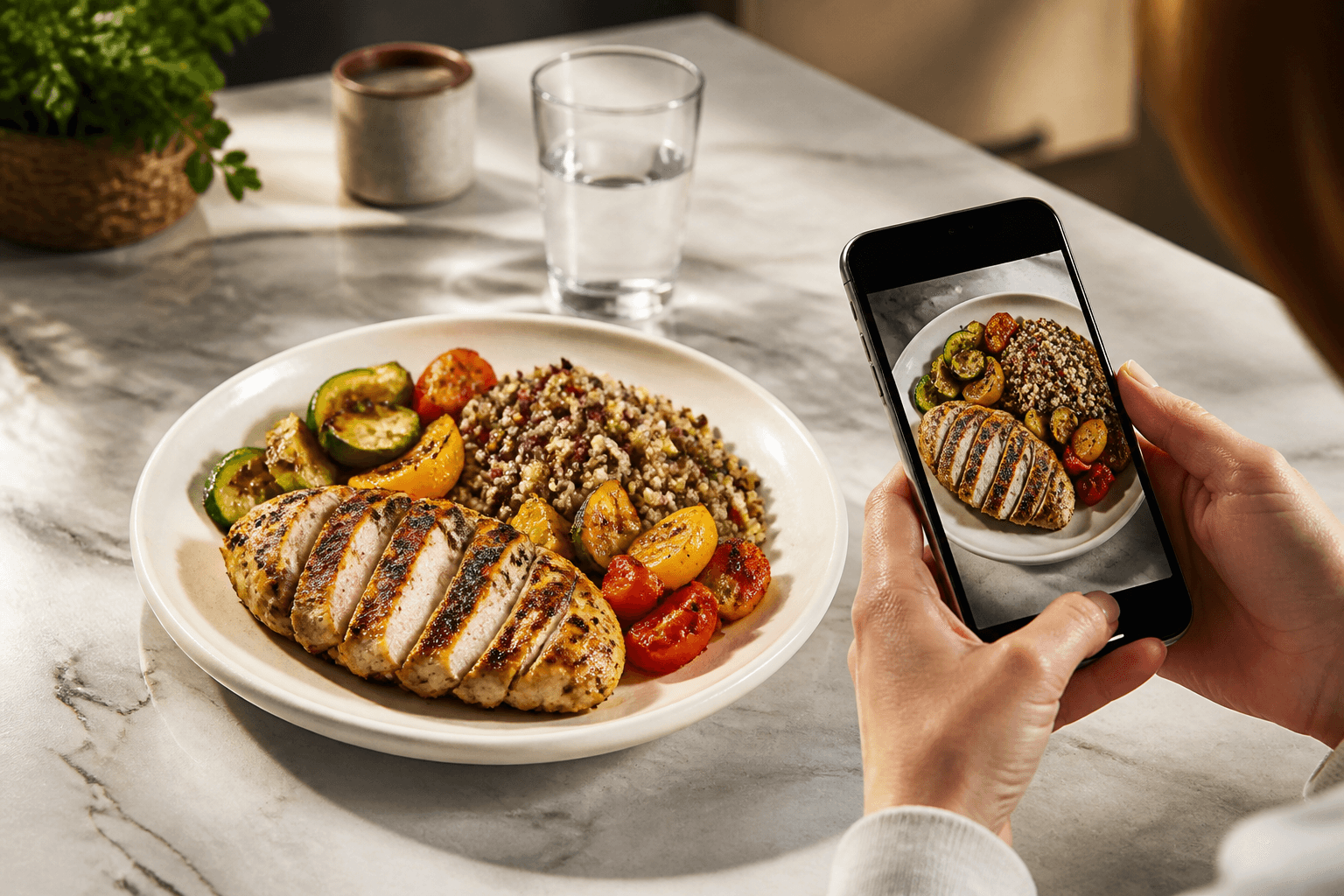
Cal AI does not use a manual food database lookup for your meal estimate; it estimates calories and macros from a meal photo . That is a separate part of the app from the calorie goal itself. The goal comes from TDEE, while the meal log comes from the photo scan.
How does Cal AI calculate your calorie goal from your TDEE?
Cal AI calculates your calorie goal from TDEE using the Mifflin-St Jeor method, which is the formula behind the app’s daily target. The app takes the inputs you give it, estimates your energy use, and turns that into the goal you see each day.
The practical point is simple: the goal is an estimate, not a lab result. If your weight, height, age, sex, or activity level is entered incorrectly, the goal will be off. If your routine changes while you travel, the number can drift away from what your real day looks like.
Here is how to think about the flow:
- You enter the details the app asks for.
- Cal AI uses Mifflin-St Jeor to estimate your TDEE.
- The app turns that estimate into a daily calorie goal.
- You log meals against that goal, then adjust if the estimate is not lining up with your day.
That is the part most app pages skip. They mention the goal, but not the method behind it. If you want the goal to be useful, the method matters because it tells you what to check when the number looks wrong.
How do you check or adjust your calorie goal in the app?
Open the Settings screen and look for the section tied to your calorie goal. If the number looks odd, compare the inputs you used when setting up the app with your actual details. A wrong age, height, weight, or activity setting will push the goal in the wrong direction.
If you change your routine, update the inputs rather than trying to force every meal to fit a stale goal. That is especially useful when travel changes your day. Long airport days, more walking, or a new schedule can make the old target less useful.
For subscription or account changes, do not hunt through the meal log. Use the Settings screen or the Premium screen instead. If you are checking a trial or subscription issue, the store itself controls the billing record.
For other food context, you can also use the site’s food catalog, food comparisons, and calculators when you need a reference point outside the app.
How do you log food in Cal AI without overcomplicating the scan?
Start with the photo, then choose the recognition variant that best matches what is on the plate, then correct the grams before you save it. That order matters because the scan is the starting point, not the final answer.
Use this workflow:
- Take a clear photo of the meal.
- Pick the recognition variant that matches the food the closest.
- Check the estimated grams.
- Edit the grams and calories if the portion is off.
- Save the entry.
If the meal is packaged, the photo usually needs less interpretation than a mixed plate. Packaged products make up 19% of food photos in Cal AI; the rest are prepared meals . Prepared meals are where the gram edit matters most, because the same dish can vary a lot from plate to plate.
Across 977 Cal AI photos of prepared meals from 250 people, the median estimate is 345 kcal per serving . That does not mean every meal should land there. It means the app is often estimating a single serving of a prepared dish, so your correction should focus on what is actually on your plate.
If you know the serving is larger or smaller than the scan assumes, edit the grams first. The calories will follow from that change. That keeps the log consistent without making the process slow.
What does Cal AI include, and what is not in the app?
Cal AI includes photo-based calorie and macro estimates, editable grams and calories, manual entry that does not use scans, a daily calorie goal from TDEE, and day-by-day history . That is the core of the app.
What is not in the app is just as important. There is no fitness-tracker integration, no Apple Health or Google Fit integration, no searchable food database, and no weight tracking. If you are looking for any of those, Cal AI will not fill that gap.
That also means the app works best when you use it for what it does well: estimate the meal, correct the portion, and keep the day moving. If you want a food item that is not easy to scan, use manual entry instead of waiting for a database search that is not there.
How does the Cal AI subscription work, and what if a paywall or trial issue shows up?
Cal AI subscriptions come with a trial, and the live terms stay on the product page . If you see a paywall or trial message, check the app screen first so you know whether you are hitting the trial limit, a plan screen, or a store billing issue.
If the app says you need to restore access, handle the subscription in the store that sold it:
- On iPhone: Settings > [your name] > Subscriptions
- On Android: Google Play > profile > Payments & subscriptions > Subscriptions
Do not expect the app to manage the billing record by itself. App-store subscriptions are controlled by Apple or Google, so the fix usually starts there. If the plan page looks different from what you expected, trust the store record over a screenshot.
If you are on the free side of the app and can still scan, use that time to check whether the recognition variant and gram edit solve most of your misses before you upgrade. If they do, the subscription is likely doing what you need. If not, the issue is usually the estimate itself, not the billing screen.
FAQ: What should you do if your estimate looks wrong or you are traveling?
If the estimate looks wrong, first check whether you picked the correct recognition variant and whether the grams were edited. Most bad logs come from a mismatched variant or a portion that was left at the default.
If you are traveling, update the app inputs if your routine has changed and use manual entry when a meal is hard to photograph well. Travel also makes portion size less predictable, so it is better to correct grams than to trust a fast scan.
If you have a medical condition, are pregnant, or have an eating disorder, talk to a clinician before cutting calories.
If the app still feels off after you correct the log, compare the meal against the site’s calorie catalog or use calculators to sanity-check the number before your next entry.
Topics
Frequently asked questions
Why does Cal AI use TDEE instead of a fixed calorie target?
TDEE gives the app a starting estimate based on your own body and routine, instead of forcing the same target on everyone. That makes the daily goal more useful when your size or activity level changes.
Can you change the calorie goal manually in Cal AI?
If the goal looks wrong, the first fix is to check the inputs the app used to calculate it. The app’s calorie goal comes from TDEE, so changing the underlying details is the cleanest way to adjust it.
Does Cal AI store your meals in a searchable food database?
No. Cal AI estimates calories and macros from a meal photo, and it also supports manual entry. There is no searchable food database in the app.
What should you do if a meal photo is hard to scan while traveling?
Use the closest recognition variant, then correct the grams before saving. If the meal is too messy or lighting is poor, manual entry is the safer option.
Can Cal AI sync with Apple Health or Google Fit?
No. Those integrations are not in the app. If you need that kind of syncing, you will need a different tool for that part of your workflow.
Cal AI Editorial Team
Practical guides on nutrition, calorie tracking, meal planning, and building healthier habits with Cal AI.
Editorial policyRelated articles
- Cal AI
Cal AI manual entry: log food without using a photo scan
Cal AI manual entry lets you add food without using a scan. Use the photo path only when it helps, then fix grams or calories yourself.
Nov 4, 20266 min read
- white rice
Calories in White Rice: Cup, Bowl, Restaurant Portion
Calories in white rice start at **130 kcal per 100 g**. See the cup, bowl, and restaurant portions, plus the quickest way to log rice in Cal AI.
Oct 30, 20267 min read4 views
- cal ai
Cal i: How to log a meal from a photo and what to expect
Cal AI estimates calories and macros from a meal photo, not a manual database lookup [f:cal.product.0]. Here is how to log food, what it handles well, and what to fix when the estimate is off.
Oct 29, 20268 min read
- Cal AI
The scan got the dish wrong: how to fix grams and calories in Cal AI in 20 seconds
Fix a wrong Cal AI scan by choosing the closest recognition variant, correcting grams, and editing calories when the portion still looks off.
Oct 26, 20266 min read3 views
- french fries
Calories in French Fries: Small, Medium and Large Portions
French fries are 312 kcal per 100 g, and a standard 117 g serving is 365 kcal. Use grams, not size names, when the portion looks unclear.
Oct 23, 20265 min read4 views
- Cal AI
How to Cancel Cal AI Subscription on iPhone and Android
Cancel Cal AI through Apple or Google Play, not inside the app. Follow the exact menu paths and see what cancellation means for history and scans.
Oct 20, 20265 min read1 views